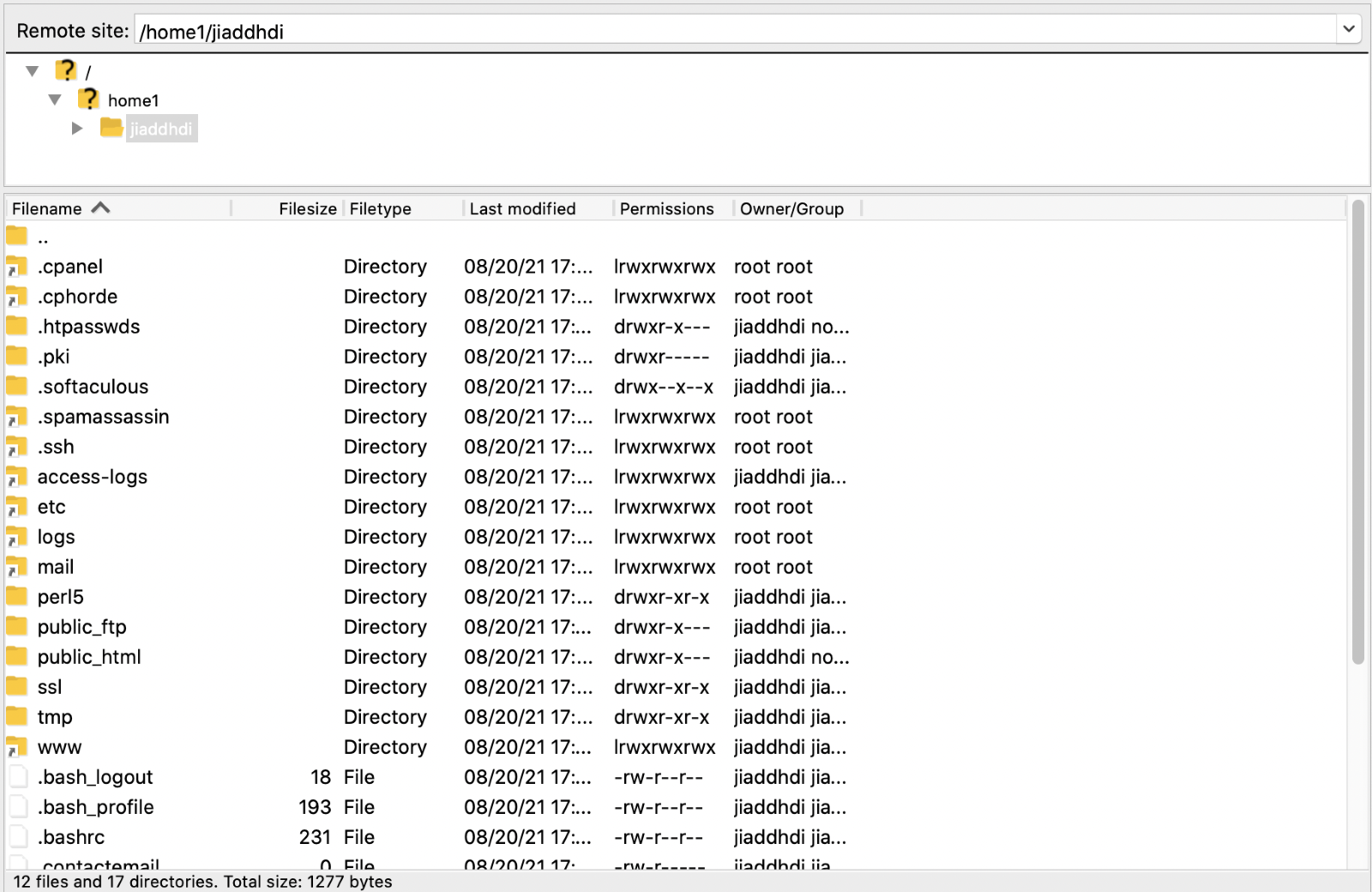
For accessing your order through SSH and FTP, you will need some basic details like IP, username, and password.
You can access these from your Cloud panel under Access Details > SSH/FTP Access.
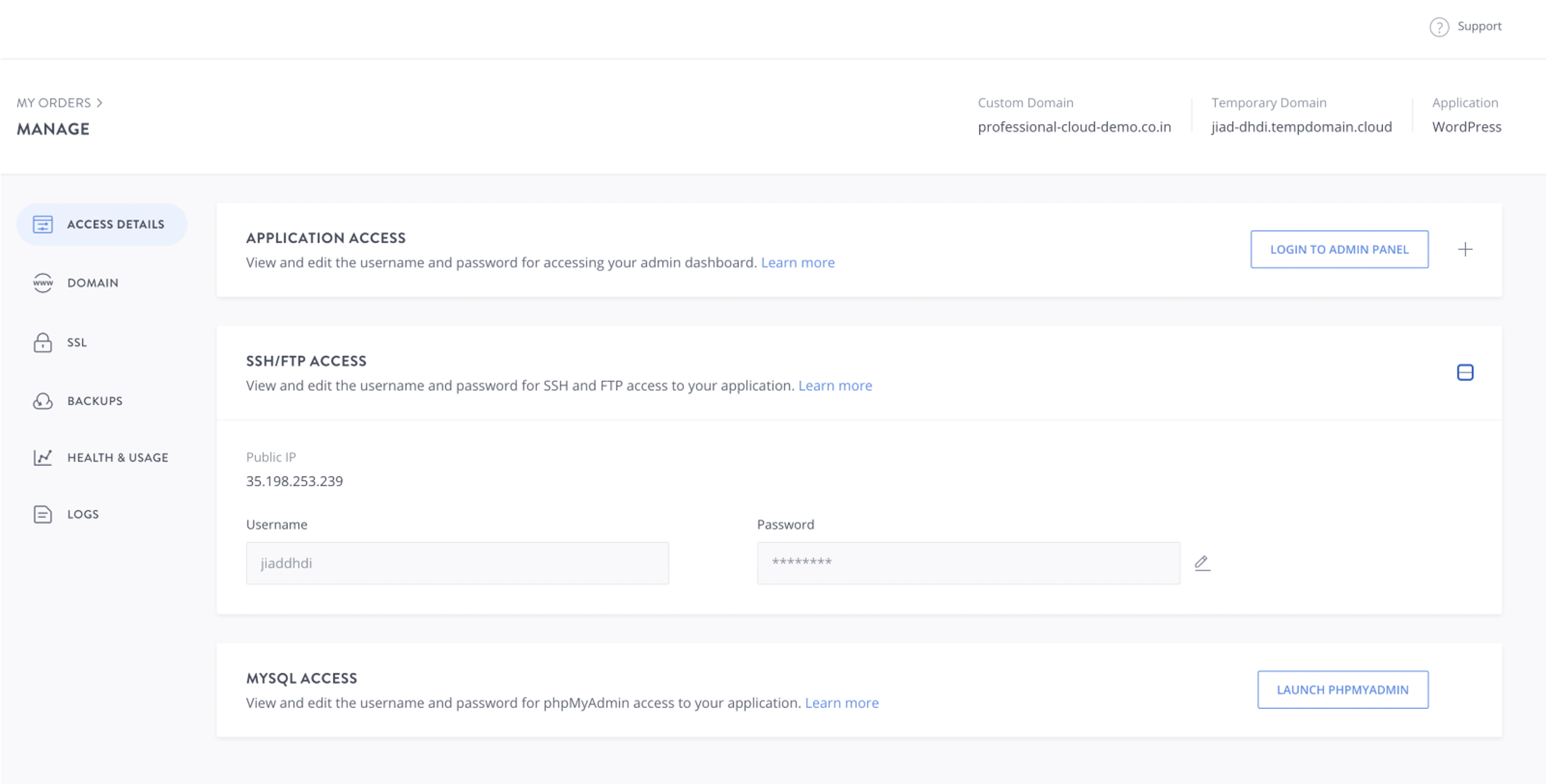
- IP: You can copy and paste the IP directly from the panel
- Username: You can copy and paste the username directly from the panel
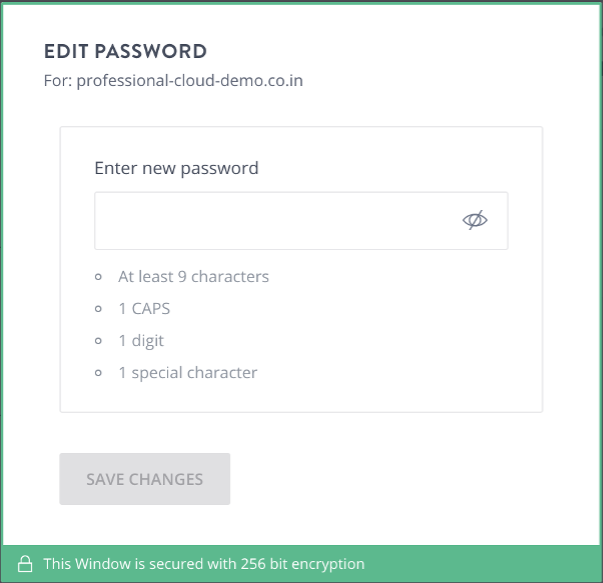
- Password: By default, we set a password for your server, but you will have to reset it before you can access your server. To reset the password, you will need to edit the password from the panel and use the password that you set by clicking the edit icon.
Accessing via SSH
-
For Windows Users - You can use PuTTY to SSH into your order.
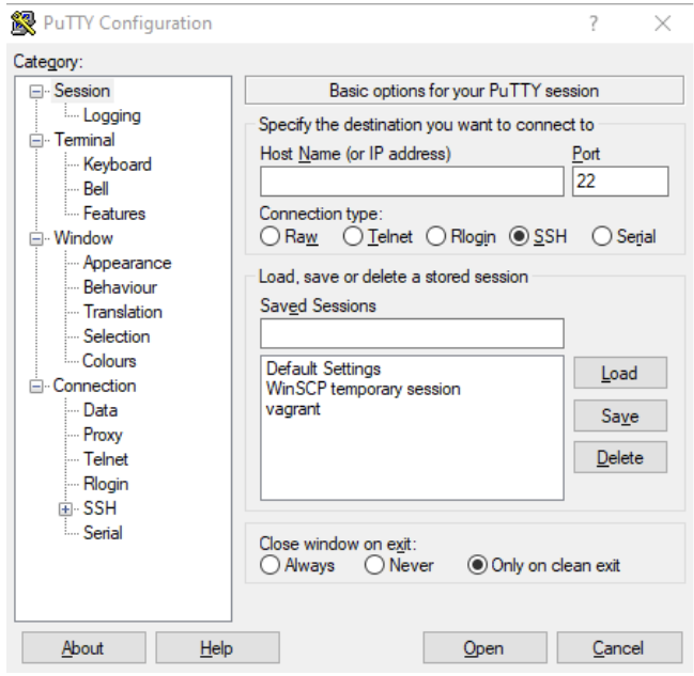
Enter the IP and username from the Cloud panel, into the PuTTY interface. After logging in to the terminal, you will be asked for a password. You can enter the password you set in the step above to access the server.
-
For Mac Users
Open your terminal, and run the following command:
ssh <username>@<IP Address>
Enter the password you set in the step above and you will be able to access the server.
Accessing via FTP
You can access the file system of your order using any FTP client of your choice. In this example, we are using Filezilla
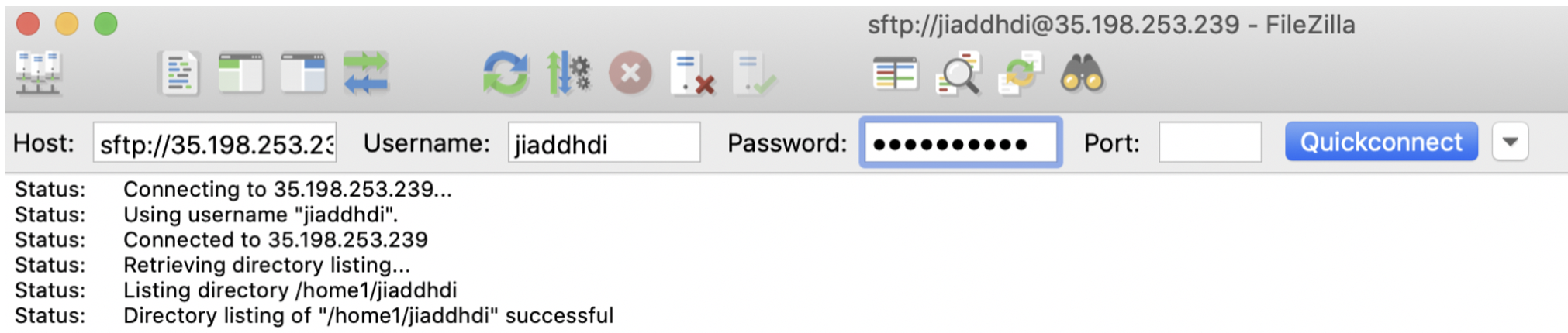
Since we allow secure FTP connections, you can only access SFTP. Hence, in the text box for hostname, you will have to use: sftp://<IP Address>
When you login for the first time, you will see this confirmation pop-up to trust the device you are accessing from. Click Always trust this host.
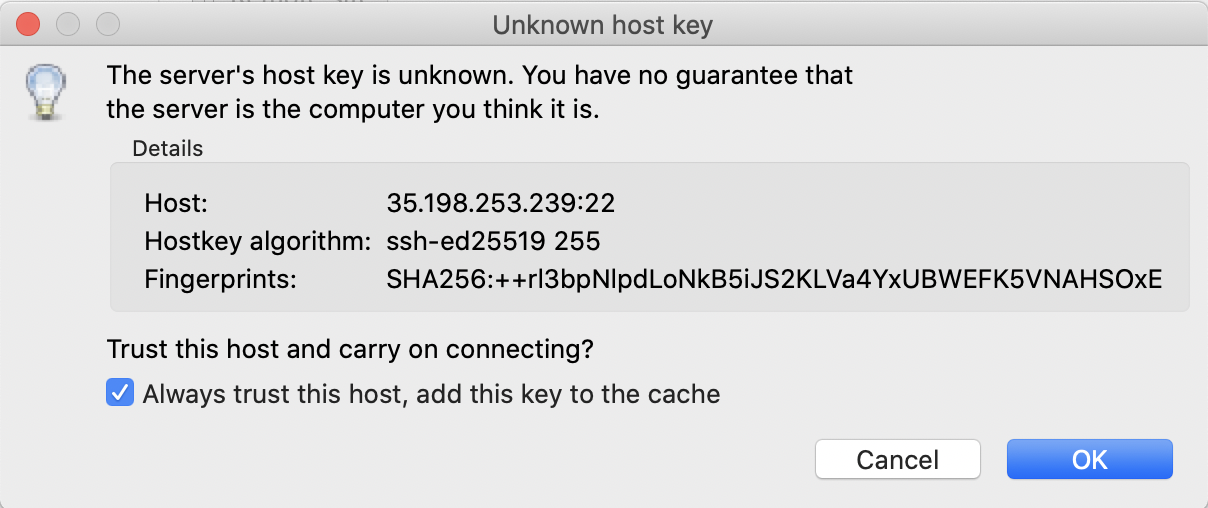
You will now be able to access your servers file system